4.1 Branching in Excel
| Goals: |
|
4.1.1 The Command
We learned that frequency Distributions allow us to tally up how often outcomes of interest occur within a data set. However, we may not need all of the information that the frequency distribution provides. In addition, the process that is involved in constructing a frequency distribution can be a little tedious. That’s where the new command comes in.
If we only want to calculate the frequency of one particular outcome from a data set, will search through DATA for the specified CRITERIA. This command does not require the CRITERIA specified to be numbers. In fact, the command will also search for words or phrases called strings. But in order to do so, the CRITERIA needs to be put in quotations, “ ”. In order to better understand this, here are a couple examples.
Example 4.1.1.
Assuming we have generated a random sample of 1000 using in column on a new sheet in Excel, let’s count up how often the value of 2 appears.
In an adjacent cell to your random sample, type the command
The second entry within the command informs Excel what to search for and count up. Since it is a numeric value for our CRITERIA, we do not need to put it quotations. Figure 4.1 shows this in action.
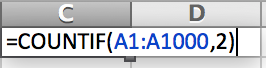
In our particular case, we end up with a count of 104. What do you get? Based on the sample taken, does this outcome make sense in a proportion sense?
Example 4.1.2.
Let’s use to count up an outcome that is a string.1414We are assuming that the data is categorical. On a new sheet, in column , generate a random sample of 20 data by using the command
What is the frequency of Yellow showing up? In order to use the new command, we must put the criteria in quotations since Yellow is a string and not a numeric value. Type the following:
Be aware that if you do not include the quotations, Excel will not properly calculate the frequency of your desired criteria. Again, here is a snapshot of it in action.
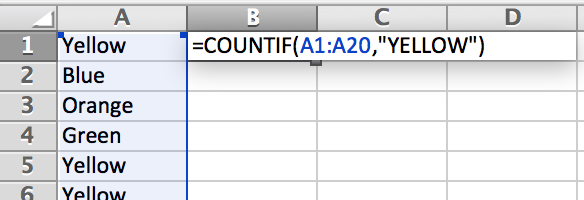
From the previous two examples, it is easy to see how can be of useful and quicker than computing a frequency distribution.
4.1.2 The Command
We now introduce what an if-then statement is. Imagine the following scenario.
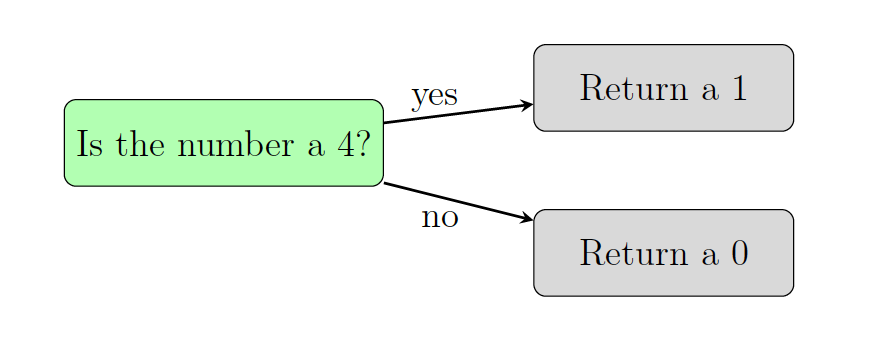
A random integer between 1 and 10 is generated. If the integer is 4, then tell me the value 1. If the integer is not a 4, then tell me the value 0.
The if and then in the language of the scenario are important. They direct the flow of the routine. Based on what the value is, we will then produce a specified output. Both of the sentences are referred to as if-then statements.
Sometimes, flow charts allow us to visualize the statements better. Figure LABEL:fig:Ifflow is a flow chart of the scenario described above.
In Excel, we can construct and perform this scenario. The command
is exactly what we need. Within the command, you will notice that the first argument needed is called LOGICAL ARG. This is the logical argument that Excel will check to see if true or false. Depending on if the logical argument is true or false, either [VALUE IF TRUE] or [VALUE IF FALSE] will be outputted. Note that you should not include the square brackets for the values to return if true or false. Let’s see how the scenario is implemented in Excel.
Example 4.1.3.
Generate a random integer between 1–10 and check to see if the value is a 4. If it is, return a 1. If it isn’t, return a 0.
On a new sheet in Excel, in cell , generate a random integer between 1 and 10 using the command .
In cell , type the command
Notice that we are checking cell to see if it is 4. This is the first entry on the command. The second entry will be outputted if it is true. The third entry will be outputted if it is false. Figure 4.4 demonstrates what the authors obtained for our random number and the command.

Based on random number we obtained, the command should output a value of 0, as it does.
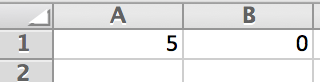
If you keep pressing F9 to regenerate a new random number, verify that you do obtain a 1 if a 4 occurs and a 0 otherwise.
In the previous example, you’ll noticed we used to check to see if was 4. In if-then statements, we refer to these operations as logical operators. Figure 4.6 shows some additional operators one could use, an example of its use, and a description of what the example does.
| Condition | Operator | Example | Description |
| Equal to | Returns the string Yes if the | ||
| cell equals whatever is in | |||
| cell . Returns No if not. | |||
| Not Equal to | Returns the string Yes if the | ||
| cell does not equal whatever | |||
| is in cell . Returns No if so. | |||
| Greater Than | Returns the string Yes if the | ||
| cell is greater than whatever | |||
| is in cell . Returns No if not. | |||
| Less Than | Returns the string Yes if the | ||
| cell is less than whatever | |||
| is in cell . Returns No if not. | |||
| Greater Than | Returns the string Yes if the | ||
| or equal to | cell is greater than or equal | ||
| to whatever is in cell . | |||
| Returns No if not. | |||
| Less Than | Returns the string Yes if the | ||
| or equal to | cell is less than or equal to | ||
| whatever is in cell . Returns | |||
| No if not. | |||
| AND | Returns 1 if both and | ||
| are True. Otherwise it | |||
| returns 0. | |||
| OR | Returns 1 if either or | ||
| , or both are True. | |||
| Otherwise it returns 0. |
Nesting ’s
Now imagine the following scenario.
A random integer between 1 and 10 is generated. If the integer is a 4, then return a 1. If not, check to see if it is a 5. If it is a 5, then return “Ok”. If not, return “Not Ok”.
This scenario involves invoking a nested if-then statement. Basically, we are going to implement another if-then statement within an if-then statement. As before, it can be easily done in Excel. Before we do, let’s see what the scenario’s representation as a flow chart would be. Figure LABEL:fig:NestedFlow depicts this.
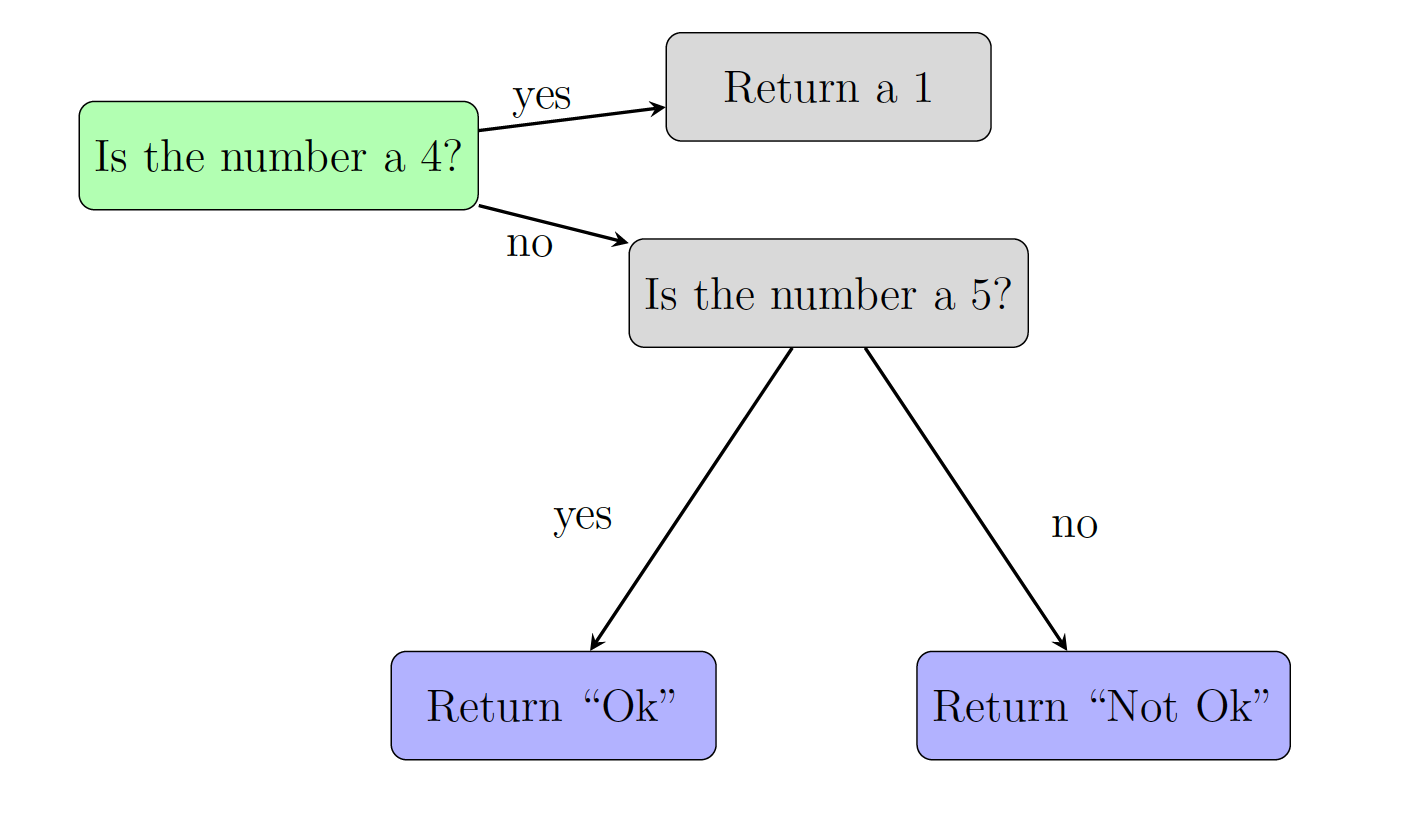
Example 4.1.4.
Generate a random integer between 1 and 10. If this value is a 4, then return a 1. Otherwise, check to see if it is a 5. If it is, return “Ok”. If not, return “Not Ok”.
On a new sheet in Excel, use the command to generate a random integer in cell .
In cell , type the following command.
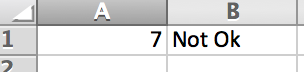
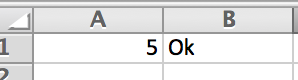
Notice that we have put another within the initial command. We place it in the third entry. Hence, the innermost will only run if the random integer is not a 4. Within the innermost , you’ll notice that the first entry checks if the random integer generated is a 5. We’ve placed “Ok” in the second entry and “Not Ok” in the third. Figure 4.8 depicts our random integer and the command being implemented.

Since a value of 4 was generated, cell will show a value of 1. Otherwise, we should be seeing “Not Ok” if it is not a 4 or 5 and “Ok” if it is a 5. Figures a and b show both possible outcomes.
|
|
Press F9 to regenerate the integer. Can you get all of the possibilities?
4.1.3 Exercises
-
1.
Answer the following as True or False.
-
(a)
A string is just a word or phrase.
-
(b)
will only calculate the frequency of numeric values.
-
(c)
In the command, the second argument will be returned if the condition checked is not true.
-
(d)
You can only nest once.
-
(a)
-
2.
Ask 5 people their favorite color. Use Excel’s command to count the frequency of each color.
-
3.
Generate a random integer between 1 and 4. If a number is even, have it output EVEN. If a number is odd, have it output ODD.
-
4.
Generate a random integer between 1 and 100. Write a command that checks to see if a number is less than or equal to 23. Return YES or NO.
-
5.
Generate a random integer between 1 and 200. Write a command that checks to see if a number is greater than or equal to 23 but less than 122. Return YES or NO. Generate a random integer between 1 and 200. Write a command that checks to see if a number is (greater than or equal to 23 and strictly less than 122) or (strictly greater than 190). Return YES or NO.
-
6.
We can have Excel output the cards in a deck. Knowing that there are 13 cards in each suit, write a if-then command that will generate a card and return the face value of the card.
-
7.
Repeat the previous exercise but instead have it output all 52 possible cards in a standardized deck. (Note: this is one long nested if-then command.)